
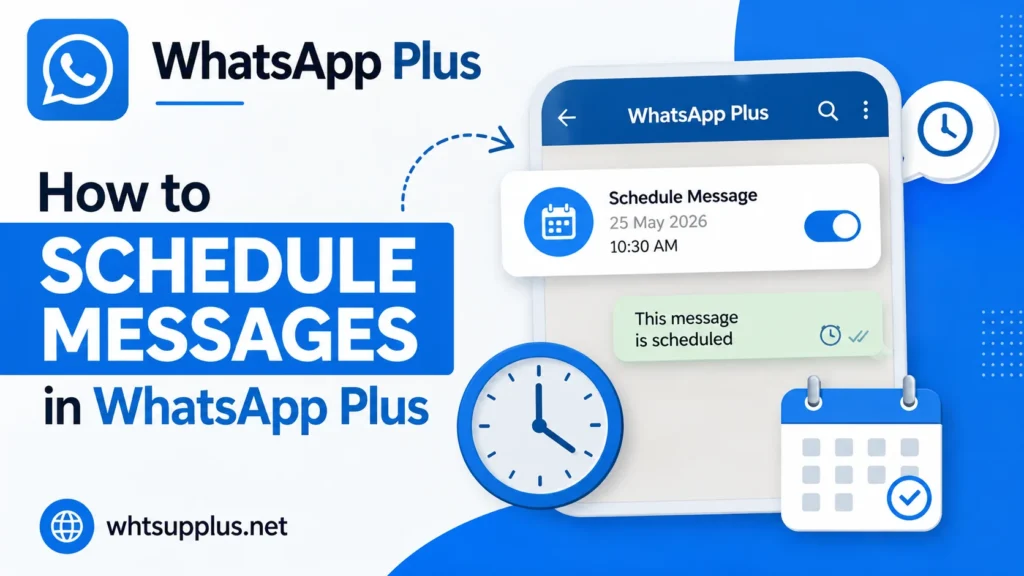
The message scheduler in WhatsApp Plus APK 2026 sends your texts automatically at any future date and time you choose. Birthday wishes arrive at midnight, work reminders fire on schedule, and you never forget an important message again. This guide walks you through the complete setup in simple steps for 2026.
The official WhatsApp still lacks any scheduling feature after years of user requests. The mod filled that gap long ago with a tool that works reliably every single time. Five minutes with this guide turns you into a scheduling pro.
Quick Answer
Open WhatsApp Plus, tap the three-dot menu, and select Message Scheduler from the list. Choose the recipient, write your message, set the date and time, and save the schedule. The app sends the message automatically at the exact moment you selected.
What Is the Message Scheduler?
The message scheduler is a built-in automation tool that queues messages for future delivery. Each scheduled message stores the recipient, the text, and the exact send time together. The app handles delivery in the background without any action from you.
The tool supports individual chats and groups equally well. Multiple messages can wait in the queue at once with different times and recipients. Every scheduled item stays editable until the moment it sends.
How to Schedule a Message Step by Step
The full process takes under a minute once you know the path. Follow these exact steps on the current v18.80 build.
- Open WhatsApp Plus on your phone
- Tap the three-dot menu at the top corner
- Select Message Scheduler from the dropdown
- Tap the plus button to create a new schedule
- Choose the recipient from your contact list
- Write the message text in the compose box
- Set the exact date and time for delivery
- Save the schedule and close the screen
The message now waits silently in your queue. Delivery happens automatically even while you use other apps.
Best Uses for Scheduled Messages
Real situations show the true value of this feature. The list below covers the most popular uses among daily users.
- Birthday wishes delivered exactly at midnight
- Work reminders sent to colleagues at meeting times
- Payment reminders scheduled for due dates
- Good morning messages queued the night before
- Event announcements timed for group chats
- Follow-up messages planned after appointments
Small business owners rely on this tool heavily for customer communication. Personal users mostly love the birthday automation above everything else.
Scheduler Settings and Options
The tool offers useful controls beyond basic scheduling. The table below summarizes every option available.
| Option | What It Does |
|---|---|
| Edit Schedule | Change text or time before sending |
| Delete Schedule | Cancel a queued message completely |
| Repeat Option | Send the same message on a cycle |
| Multiple Recipients | Queue one message for several chats |
| Queue View | See every pending message in one list |
The repeat option deserves special attention for recurring reminders. Weekly meeting notices and monthly payment reminders run themselves after one setup.
Common Scheduler Problems and Fixes
Message Did Not Send on Time
Battery optimization kills background tasks on many phones. Open your phone settings, find WhatsApp Plus, and disable battery optimization for the app. Scheduled messages then fire precisely on time.
Scheduler Option Missing
Very old versions lack the scheduler or hide it in different menus. Update to the latest build from a trusted source like Whtsupplus.net, and the tool appears in its standard menu position. The newest release also improved delivery reliability.
Message Sent Twice
A rare queue bug in older builds duplicated some sends. The v18.80 update fixed this problem completely. Clear the old queue once after updating for a clean start.
Does Scheduling Cause Ban Risk?
Normal scheduling carries no special ban risk beyond standard mod use. The feature sends messages at human-like volumes to your real contacts. Problems only arise from bulk spam behavior, which risks any account on any app.
Keep your schedules reasonable and personal for total safety. Update the app regularly, and the scheduler stays a worry-free productivity tool. Millions of users run daily schedules without any issues.
Final Thoughts
The message scheduler turns WhatsApp Plus into a genuine productivity upgrade over the official app. Birthdays, reminders, and follow-ups handle themselves after a one-minute setup. The feature works so well that official app users constantly ask how you never miss a date.
Grab the latest tested build from Whtsupplus.net if your version lacks the tool. Queue your first message today, and enjoy the quiet satisfaction of perfect timing. Your contacts will think you have the best memory in the world.
Frequently Asked Questions
No, the phone must be powered on with an internet connection at send time. The app works in the background but cannot run on a dead phone. A charged phone with data delivers every schedule perfectly.
Yes, groups appear in the recipient list alongside individual contacts. The message posts to the group at your chosen time. Multiple groups can receive the same scheduled message too.
No practical limit restricts your queue size. Dozens of pending messages run without problems. Keep volumes human and personal for account safety.
Yes, every queued message stays editable until it sends. Open the scheduler list, tap the message, and change the text or time. The updated version replaces the original completely.
No, scheduled messages look identical to normal ones. No label or indicator reveals the automation. Only your perfect timing might raise friendly suspicion.